


Settings App
3.2226.00 Reviews
App Specs
- Version
- 4.0
- Updated On
- License
- Free
- Downloads
- 500,000+
- Developer
- BourtinaUp
- Categories
- Personalization
- Platform
- Android
Screenshots
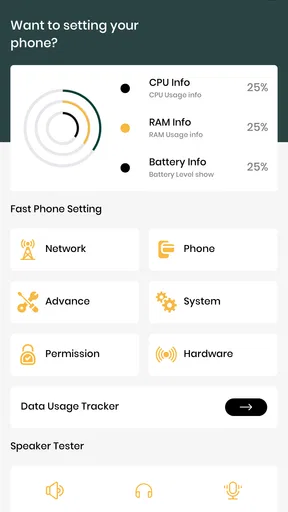
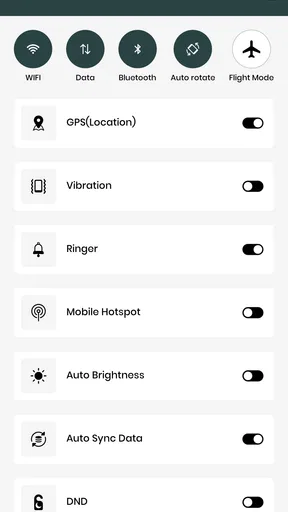
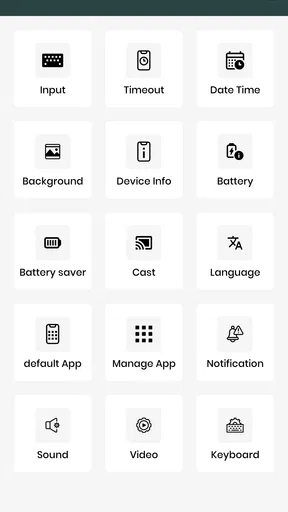
 Analysis by AppCompare
When I need to change something on my phone quickly, the hardest part is often remembering where the option lives. A settings shortcut can save that small but repeated search, which is the useful idea behind Settings App. It is a free personalization app from BourtinaUp, released on June 13, 2025, with a focus on quicker access to settings. I’d think of it as a convenience layer, not a replacement for the system controls built into a phone.
What quick access changes
The appeal is simple: settings matter most when you can reach the relevant control without hunting through menus. If you regularly adjust your phone for work, travel, accessibility, or battery life, reducing that bit of navigation can make routine changes feel less like a chore. The benefit is practical rather than dramatic; it is about getting to a control sooner, not changing what the control can do.
That distinction is worth keeping in mind. A separate settings app does not automatically mean every phone option has been gathered into one new, universal panel. Your device’s operating system still determines which controls are available and how they behave. I would use this app as an access point, then rely on the phone’s own settings for the actual changes.
A more deliberate everyday workflow
For a realistic example, imagine leaving home with your battery lower than expected. You may want to check power-related options, reduce screen brightness, or review what is using energy. A quick route to settings is most useful when you already know the kind of control you need; it is less helpful if you are unsure what the problem is and need to browse several menus.
I also see a use for people who switch between contexts. Before a meeting, you might want to check sound or notifications; after work, you may want to restore your usual setup. Rather than changing lots of things at once, I’d make one adjustment, confirm the phone behaves as expected, and then move on. That habit makes it easier to spot which setting caused an unexpected result.
Where it fits among alternatives
Most phones already provide their own Settings app, and Android often adds quick settings in the notification shade. Those built-in routes are the natural first choice for people who are happy with their current navigation. A dedicated app makes more sense when its shortcut-based approach fits the way you reach controls, or when you want a separate entry point that is easy to recognize.
There is a trade-off: one more app can simplify access, but it can also add an extra step if the built-in route is already familiar. I would compare the time it saves against the small effort of opening another app. If you only change settings occasionally, the phone’s standard menus may be enough. If you revisit controls often, a quicker route can be worthwhile.
Worth Reading Before You Choose

EA SPORTS FC Mobile 26 Is a Bigger Football Game, but It Takes Time

Flipboard Shows What News Apps Must Do Beyond the Feed

Switching to Android Auto Means Rethinking Your Driving Routine

Google Calendar Makes a Crowded Week Easier to Manage

Ludo King Makes the Most of the Minutes Between Plans

Baby Panda World Brings Quick Play to Modern Phones, but Its Game Library Feels Busy
Good reasons to try it—and reasons to pass
This is best suited to people who prefer direct access over exploring menus, including anyone who often tweaks their phone’s setup during the day. It may also appeal to less confident users who want a clear starting point when they need to find a system control. The app is rated Everyone, and its free price makes it easy to consider without treating it as a major purchase decision.
I would skip it if you expect a full replacement for your phone’s built-in settings, advanced device management, or a large collection of customization tools. The practical question is whether its route to settings feels faster on your particular device. Try it with the few controls you actually use, rather than assuming that an extra settings app will improve every part of your routine.
Small habits that make access more useful
A helpful way to evaluate any settings shortcut is to pick two or three recurring tasks before you start: perhaps adjusting sound, checking a display option, or finding a privacy control. Use the same tasks for a few days and notice whether the route is genuinely easier to remember. This is a better test than opening the app once, tapping around, and deciding based on first impressions.
For changes you rarely make, keep a note of the wording you would search for in the phone’s own menus. System labels can vary between devices, so searching by the purpose of a control is often more reliable than expecting the same menu path everywhere. A shortcut app can help you get oriented, but knowing the control’s name helps when you move between phones or operating-system versions.
Getting to Know the Settings App
The Settings App might not be the flashiest app on your phone, but it’s definitely one of the most powerful. From adjusting your display brightness to managing notifications, it’s got all the tools you need to customize your device. Think of it as the backstage pass to all the cool stuff your phone can do.
On Android, the Settings App is usually represented by a little gear icon. iOS users will find a similar gear icon marked "Settings." When you open it, you’re greeted with a list of options that might seem a bit overwhelming at first. But don’t worry, it’s more organized than it looks.
Interface and Navigation
Let’s talk about the interface. On both platforms, the Settings App is designed to be user-friendly. The menu is typically divided into sections like Network, Display, Sound, and more. This makes it super easy to find what you’re looking for, even if you’re not a tech whiz.
On Android, the search bar is a lifesaver. Just type in what you’re looking for, and you’ll be directed straight to the right setting. iOS users will appreciate the logical layout, as everything is neatly categorized.
Customization Galore
One of the best things about the Settings App is the level of customization it offers. Whether you’re changing your wallpaper or setting up a VPN, this app has you covered. You can adjust almost anything to suit your preferences.
For those who love a personalized touch, the app allows you to change ringtones, notification sounds, and even the font size. It’s all about making your phone feel like it’s truly yours.
Privacy and Security
In today’s world, privacy is a big deal. The Settings App has a host of features to help you keep your data safe. Both Android and iOS offer options to manage app permissions, control location settings, and more. You can easily decide which apps get access to your camera, microphone, and other sensitive areas.
iOS users will find the "Privacy" section particularly robust, with options to limit ad tracking and control how apps access your personal data. Android users, on the other hand, have the advantage of granular control over app permissions.
Keeping Your Device in Check
The Settings App isn’t just about making your phone look pretty. It’s also crucial for maintaining your device’s health. With options to manage storage, update software, and perform factory resets, it ensures your phone runs smoothly.
Battery management is another key feature. You can monitor which apps are draining your battery and adjust settings to extend your device’s life. Trust me, once you start using these features, you’ll wonder how you ever lived without them.
Accessibility Features
Accessibility is another area where the Settings App shines. Both platforms offer a range of features to assist users with disabilities. From voice controls to screen readers, there’s something for everyone.
For instance, you can enable features like "VoiceOver" on iOS or "TalkBack" on Android. These tools are game-changers for those who need a little extra help navigating their devices.
So, whether you’re a tech enthusiast or someone who just wants their phone to work better, the Settings App is your go-to tool. It might not be the app you show off to your friends, but it’s the one that ensures everything else runs smoothly. Dive in, explore, and make your device truly your own.
What to expect before installing
One question I would ask before trying it is whether it suits my device and software. The app’s current version is 4.0, and it supports Android 5.0 and newer. It has reached over 500,000 installs and has an average rating of 3.6 from around 3,100 ratings, with 114 written reviews. I take those figures as a sign of a product with a sizeable audience, but not as proof that every phone handles it the same way.
Because settings screens differ across manufacturers and operating-system versions, I would test the route on the phone I actually use rather than assume that instructions or habits transfer perfectly. A control may have a different name or location on another device. That is normal for system settings, and it is a reason to judge the app by how smoothly it gets you to the controls that matter to you.
Choosing what to change
Quick access is most valuable when paired with a little restraint. Before changing an unfamiliar privacy, network, or accessibility option, I’d read the label and consider the effect on the task at hand. If a change causes trouble, return to the same control and undo it instead of changing several settings in response. This simple one-at-a-time approach makes troubleshooting much less confusing.
It is also sensible to separate temporary adjustments from lasting preferences. Muting sound for a meeting is different from changing notification behavior for good; dimming the display for a low battery is different from choosing a permanent brightness preference. Thinking about whether a change is temporary helps me remember to restore it later and avoids the familiar mystery of wondering why the phone feels different.
My recommendation
For me, the strongest reason to consider this app is convenience: it is aimed at people who want a faster way into phone settings, not at people looking for a new phone operating system. BourtinaUp’s app is free, and its Everyone content rating makes it broadly approachable. Still, I would keep expectations focused on access and judge it by whether it makes your own repeated tasks easier.
If the built-in Settings app already feels quick and clear, there is no need to add another route. If you often pause to remember where a useful control lives, trying a dedicated entry point may be worthwhile. I’d install it with a specific everyday task in mind, see whether that task becomes simpler, and keep it only if the improvement is real.
Pros
- User-friendly interface for easy navigation.
- Comprehensive customization options.
- Quick access to frequently used settings.
- Efficient search function for settings.
- Regular updates improve functionality.
Cons
- Some advanced features may be hidden.
- Occasional lag in loading settings.
- Limited third-party integration.
- Can be overwhelming for new users.
- No dark mode for all settings.
FAQs for Settings App
What features does the Settings App provide?
The Settings App offers a comprehensive range of features allowing users to manage various aspects of their device. This includes adjusting display settings, managing app permissions, configuring network connections, setting up security options, and personalizing notifications. It serves as a central hub for device customization and system management.
How can I customize notifications through the Settings App?
In the Settings App, users can customize notifications by navigating to the 'Notifications' section. Here, you can choose which apps can send notifications, set priority levels, and customize how notifications are displayed. This allows for a tailored notification experience to suit your preferences.
Is it possible to manage app permissions using the Settings App?
Yes, the Settings App allows you to manage permissions for each installed app. By accessing the 'Apps & Permissions' section, you can control which apps have access to your location, camera, microphone, and other sensitive data. This helps enhance your device's security and privacy.
What security options are available in the Settings App?
The Settings App provides various security options including setting up lock screens, configuring biometric authentication like fingerprints or facial recognition, and managing passwords. Additionally, users can enable features such as Find My Device and two-factor authentication to enhance security.
How do I troubleshoot connectivity issues through the Settings App?
To troubleshoot connectivity issues, the Settings App offers tools to manage Wi-Fi, mobile data, and Bluetooth settings. Users can toggle connections, forget and reconnect to networks, and reset network settings if necessary. This can resolve common connectivity problems effectively.


